Screen and navigation
Every main view uses the same three-part frame: a top bar, a working area, and an optional bottom bar. The interface changes the information in those regions instead of opening desktop-style menus.
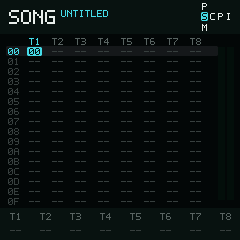
Holding Shift reveals the navigation map in the top-right corner.
Top bar
The left side names the current view and its resource number. The right side normally shows battery state. While playing it shows a filled play triangle and elapsed time; while saving it shows the animated save mark. Holding Shift temporarily shows the navigation map instead.
Working area
The cyan rounded cursor identifies the active value. A dim row bar marks the current row behind the cells. The cursor slides to the next value when you move, so it is always clear which value will change.
In the tracker grids, time runs from top to bottom and tracks or data columns run from left to right. The row numbers are moments in time, not item numbers in a menu.
Tracker rows use hexadecimal labels (00 through 0F in a 16-row view).
Signed transpose in Chain is the notable exception: it uses decimal.
Bottom bar
The bottom bar tells you what the current value or action can do. It may show:
- editing hints while Enter is held;
- a short explanation of a Phrase or Table command;
- the note currently being previewed;
- a result such as Copied, Pasted, or Saved.
Some pages hide the bar when there is nothing useful to show.
Navigation map
Hold Shift to replace the top-right status with the navigation
map. Its center row is S C P I: Song, Chain, Phrase, and Instrument. Cyan
marks the current view, and the map adds the available views above or below
that column. Keep holding Shift and tap a direction to move.
See Navigation for the expanded map, its behavior, and a guided Song-to-Phrase example.