Quick start
This walkthrough starts with an empty project and uses the built-in OPAL synth, so it does not need a sample or demo file.
Before you start
- Make sure audio is ready on your device. See Use NullPerator anywhere if this is your first session.
- Save any work you want to keep; the first step replaces the current project.
- Find Shift, Enter, Play, and the directions in Controls at a glance.
On Web, choose Enable sound before using Enter or Play for the first time.
In the steps below, “tap” means press and release; “hold” means keep the button down.
1. Open a clean project
If an existing song opens on Song, use to open Project. Place the cursor on Name, use Left or Right to select New in the bottom bar, and press Enter. If NullPerator warns that unsaved changes will be lost, choose Yes and press Enter again.
After choosing New, NullPerator returns to Song automatically. Put the
cursor on row 00, track T1.
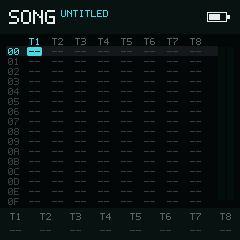
Song arranges music across eight tracks. Start at row 00 under T1.
2. Make the first pattern
- Tap Enter. The Song cell becomes
00. - Use to open Chain 00.
- At Chain row
00, tap Enter. ThePHcell becomes00. - Use again to open Phrase 00.
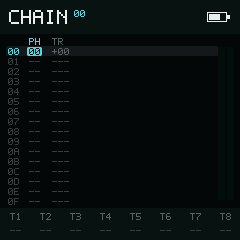
PH chooses a phrase. Leave TR at 0 for now.
3. Add a note
Keep the cursor on NOTE, row 00, and tap Enter. The row now
shows note C3 and instrument I00. It is normal to hear nothing yet: the
instrument slot does not have a sound until the next step.
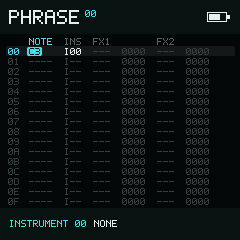
C3 is the pitch. I00, immediately to its right, chooses Instrument 00.
4. Give it a sound
- Use to open Instrument 00.
- Tap Down once to move from Name to Type.
- Use Left / Right until Type reads
OPAL. - Use to return to Phrase.
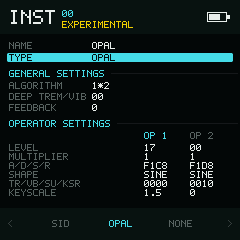
When Type reads OPAL and the settings appear, Instrument 00 is ready.
5. Hear and play it
Back on Phrase row 00, hold Enter while the cursor is on the
C3 note. You should hear the note immediately; release Enter to stop the
preview.
Tap Play to hear the pattern in sequence. A filled triangle in the top bar means playback is active. Tap Play again to stop.
If there is no sound, check these three things:
- Audio is ready on your device.
- The Phrase row shows both
C3andI00. - Instrument 00 shows
TYPE OPAL, notNONE.
6. Name and save it
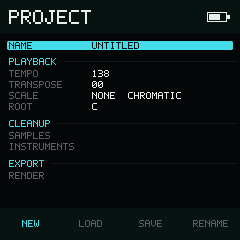
Name actions appear in the bottom bar: New, Load, Save, and Rename.
- Use to go from Phrase to Chain.
- Use again to go from Chain to Song.
- Use to open Project.
- Focus Name, choose Rename in the bottom bar, and press Enter.
- Enter a non-empty name and choose Save.
- Back on Project, choose Save in the Name bottom bar.
NullPerator also autosaves when it is safe. Before closing the app, powering off, or removing storage, stop playback and wait for the saving mark in the top-right corner to disappear. Use Save whenever you want a known checkpoint.
Next
- Try the interactive controls at a glance.
- Understand the screen map.
- Build a complete arrangement in Song & Live.