Phrase
A phrase is the main note-entry grid. Chains refer to phrases, and each phrase contains 16 steps. NullPerator provides phrase IDs 00–FE.
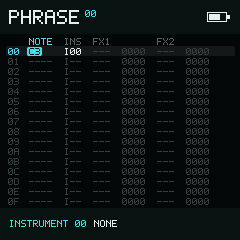
Phrase keeps NOTE, INS, FX1, and FX2 aligned across all sixteen steps.
Fields
| Column | Meaning | Empty display |
|---|---|---|
NOTE | Note trigger, note off, or no event | ---- |
INS | Instrument slot 00–3F | I-- |
FX1 | First three-character effect command | --- |
| FX1 value | Four hexadecimal digits interpreted by FX1 | 0000 |
FX2 | Second effect command | --- |
| FX2 value | Four hexadecimal digits interpreted by FX2 | 0000 |
The bottom bar normally shows the latest live note on each track. A populated NOTE or INS cell can replace it with instrument context; a non-empty FX pair replaces it with that command's help. Selection and clipboard notices take priority over both.
Try this
- Put the cursor on an empty
NOTEcell and tap Enter. The most recent note and instrument are inserted together. - Hold Enter on the note to preview it. While holding, tap Right to move to the next note in the project scale, then release Enter.
- Tap Play to hear the Phrase in sequence; tap Play again to stop.
For a complete guided example, follow Make your first loop.
Navigation
Directions move through the six editable columns and 16 steps. At row 00, Up opens the previous populated phrase in the current chain and lands on 0F. At row 0F, Down opens the next populated phrase and lands on 00. An empty adjacent Chain row blocks the move.
Hold Option to change context without moving the cell cursor:
- Left / Right selects the previous or next track at the current Chain row.
- Up / Down selects the phrase in the adjacent Chain row while preserving the current Phrase step. An empty adjacent row blocks the move.
Editing
Press Enter on an empty NOTE or INS cell to insert the remembered
value immediately. On NOTE or INS, holding Enter also auditions
the current step until it is released. A step without a playable instrument or
note may produce no sound.
Audition does not interrupt an already-running Song, Chain, or Phrase transport.
Creating a note in an empty NOTE cell also writes the last explicit instrument into INS. This makes the new note immediately playable. A deliberately empty I-- on an existing note still keeps its normal playback-time instrument inheritance behavior.
Hold Enter and use the directions:
| Column | Left / Right | Down / Up |
|---|---|---|
NOTE | Previous / next note in the project scale | Down / Up one octave |
INS | -1 / +1 slot | -10 / +10 in hexadecimal (-16 / +16) |
| FX command | Move left / right in FX Select | Move down / up in FX Select |
| FX value | Move the active digit | Decrease / increase that hex digit |
For sliced sample instruments, NOTE editing stays inside the instrument's slice-note range. Otherwise NOTE editing follows the project's root and scale.
Hold Enter on an FX command to open FX Select. Six-row columns form a fixed directory: Standard, Sample, MIDI, and Synth. All groups stay accessible; the top bar shows the current instrument type. Directions move without wrapping and scroll the list horizontally as needed. Release Enter to close it. Unsupported FX stay in their normal group, grey but selectable, with Not Supported / On This Instrument in the two-line help bar. See Choose an available command for instrument inheritance, Table context, and the capability list.
FX values have a four-digit cursor. While Enter is held,
Left and Right choose the digit;
Up and Down edit it with steps of 1000,
0100, 0010, or 0001. The effect command clamps the final value to its
valid range.
On INS, a second consecutive Enter allocates a new empty instrument slot. On the parameter of a TBL effect, a second Enter allocates a new table. This replaces an existing number too; it does not copy the old instrument or table. These allocation gestures do not apply to NOTE or ordinary FX cells.
Hold Enter and Option together to cut a cell. Cutting NOTE also clears its paired INS assignment; cutting an FX command clears the command and its value.
If Enter first fills an empty cell, pressing Option while Enter remains held cuts the newly displayed value. To insert Note Off in an empty NOTE cell, hold Option first, then press Enter.
With a Drum instrument, NOTE shows D01–D12. Hold Enter and use Left / Right to change the drum by one, or Up / Down by ten. The kit wraps at both ends without following the project scale.
Selection and clipboard
Begin a selection with , release Shift, and extend it with the directions.
| Input while selected | Result |
|---|---|
| Expand across all six columns; repeat to select all 16 rows | |
| Option | Copy and exit Selection Mode |
| Cut and exit Selection Mode | |
| Enter + direction | Adjust every selected cell |
| Play | Play the current Phrase context |
Paste with after the selection has closed. Phrase clipboard columns remain type-aligned: a copied note returns to NOTE, and values cannot be pasted into command cells. Compatible FX command/value pairs can also be transferred between Phrase and Table.
Clone referenced data
The clone gesture is , keep Shift held, release Option, then press Enter immediately:
- On
INS, it duplicates the referenced instrument into a new slot and updates this cell. - On an FX value whose command is
TBL, it duplicates the referenced table and updates the value. - It does not clone from NOTE or FX command cells.
Playback and track state
- Play starts or stops the current phrase on the selected track, using its position in the current chain.
- starts or stops the whole Song from the stored Song cursor.
- toggles solo for the selected track.
- toggles mute for the selected track.
- clears all mute and solo state.
Next
Hold Shift and press:
- Left → Chain
- Right → Instrument
- Down → Phrase Table
- Up → Groove