Groove
A groove redistributes ticks between Phrase steps. Equal values produce straight timing; alternating long and short values create swing without moving or duplicating notes.
NullPerator stores 32 grooves, IDs 00–1F. Each groove has up to 16 steps. A populated step contains 01–0F ticks; -- ends the active pattern, which then loops to step 00.
New projects initialize every groove as 06 / 06, the straight two-step pattern.
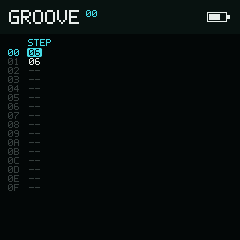
Each populated value is the tick duration of one Phrase step.
Examples
| Steps | Result |
|---|---|
06 / 06 | Straight timing |
07 / 05 | Light swing while preserving a 12-tick pair |
09 / 03 | Strong swing |
01 / 0F | Extreme short–long contrast |
Groove values control duration, not velocity. A row with 09 simply remains active for more ticks than a row with 03.
Navigate and edit
Plain Up and Down move through the 16 Groove rows and wrap at both ends.
Tap Enter on an empty row to initialize it to 06. Hold Enter and use:
- Left / Right to decrease or increase only the selected row by one tick.
- Down / Up to decrease or increase the selected row by one while changing its even/odd partner in the opposite direction.
The paired edit preserves the pair's total duration. For example,
Up on the first row of 06 / 06 produces 07 / 05. At the
01 and 0F boundaries, an edit that cannot preserve the total is ignored.
Hold Enter, then press Option to clear the current step back to --.
Hold Option and use the directions to choose another groove:
| Direction | Groove ID change |
|---|---|
| Left / Right | -1 / +1 |
| Down / Up | -10 / +10 hexadecimal (-16 / +16) |
Groove selection wraps through all 32 IDs.
Selection, clipboard, and interpolation
Begin Selection Mode with , release Shift, then extend the range with Up or Down.
| Input while selected | Result |
|---|---|
| Expand the selection to all 16 steps | |
| Option | Copy and exit Selection Mode |
| Cut and exit Selection Mode | |
| Interpolate between the first and last selected values |
Interpolation fills the interior rows with evenly spaced, rounded tick values. It requires at least two selected rows and populated values at both endpoints; the selection stays active after interpolation so the result can be inspected.
After copying or cutting, move to the destination row and press outside Selection Mode to paste. Paste stops at row 0F if the copied range would extend past the Groove boundary.
The bottom bar normally displays live notes for all eight tracks. Selection guidance and the two-second copied, pasted, or interpolated notice temporarily replace it.
Playback and track state
- Play starts or stops the current Phrase context on the selected track so the Groove can be auditioned in place.
- starts or stops the whole Song from the stored Song cursor.
- toggles solo for the selected track.
- toggles mute for the selected track.
- clears all mute and solo state.
The playback mark appears only when the selected track is actively using the displayed groove.
Page navigation
Hold Shift and press Down to return to Phrase.