Slices
Slices let different notes play different parts of one WAV. Load a sample,
select the instrument's SLICES row, and press Enter.
Slice edits apply to the instrument immediately and are saved with the project. There is no separate Save action, and the WAV is unchanged. Use the Sample Editor when you want to trim or normalize the audio itself.
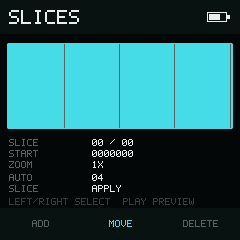
Slice shows the selected slice number and the total available count.
Choose slices and change the count
- Select the Slice row. Use Left / Right to select an existing slice. Selection stops at the first and last slice; it never enters an empty slot or wraps around.
- Hold Enter to show Count in the bottom bar. Press Right to increase the total count, or Left to decrease it. Release Enter to return to selection.
- Tap Play to preview the selected slice; tap again to stop early.
Count is the total number of slices, not the selected slice number. Increasing it splits the longest remaining interval while preserving existing boundaries. Decreasing it removes the last boundary. The count is bounded at 1–16 and cannot create slices shorter than one frame. At 1, the sample is unsliced.
Move a boundary
Select a slice, then move down to Start:
- Left / Right moves its start by one frame.
- Hold Enter, choose one of the seven hexadecimal digits with Left / Right, then change it with Up / Down.
- on Slice or Start deletes the selected defined slice and compacts the remaining slots.
Boundaries stay ordered. The next boundary, or the end of the WAV, determines where a slice ends.
Zoom
Move to Zoom and use Left / Right directly. The selector stops at the smallest and largest zoom levels. You can also use or from any row to zoom around the selected slice.
Auto Slice
Auto Slice spaces the current total count evenly across the WAV. It does not detect transients or add another set of slices.
- Set the total count on Slice with Enter held.
- Move to Auto Slice and press Enter.
- If slices already exist, the dialog asks Space slices evenly? and shows how many will be repositioned. Choose Cancel on the left to keep their positions, or Replace on the right to space them evenly.
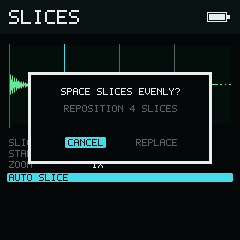
Replace redistributes the current count; Cancel keeps the existing positions.
With 2–16 slices, the first begins at frame zero and the rest divide the file into equal intervals. A count of 1 clears slice points and restores the whole sample. Replacing slices changes their positions, not their count or the WAV.
Play slices from a phrase
Use to return to the instrument. When slice
points are present, notes C4–D#5 (stored notes 48–63) address slots 1–16. Undefined slots in that
range are silent. Each slice plays once up to the next boundary, independently
of the instrument's loop mode.
Importing and assigning a different WAV clears that instrument's slices. Other instruments using the same WAV retain their own independent boundaries.