Record a sample
Record is available from a Sample instrument's SAMPLE row. On Web and iOS,
its bottom-bar button sits immediately to the right of Import.
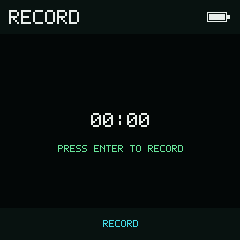
Enter starts and stops recording. The level meter appears once capture begins.
Capture a take
- Stop playback and open an instrument with Type set to
SAMPLE. - Select the
SAMPLErow, choose Record, and press Enter. - On NullPerator hardware, use Left / Right to choose line input, onboard mic, or headset mic. Web and iOS use their current microphone/input route.
- Press Enter to start. Allow microphone access if asked. The timer advances and the input level meter appears.
- Press Enter again to stop. Wait for the take to finish saving; it opens in the Sample Editor.
- Tap Play to preview the take. Trim or normalize it if needed, then select the Save row and choose Save.
- Enter an unused name and confirm Save on the name screen. NullPerator
writes the WAV into
/samples, imports it into the project, and assigns it to the current Sample instrument.
Recording uses Enter. Play previews the take after you reach the editor. See Sample Editor for Save As and for discarding an unsaved take with .
On Web and iOS, a take is limited to 30 seconds and stops automatically at that limit. The saved recording is mono, 16-bit PCM at 44,100 Hz.
Microphone access
Opening Record does not open the Web or iOS microphone. Capture begins when you start recording and releases the microphone when you stop. Each visit starts with a fresh timer; there is no Monitor control.
Web recording needs a browser that supports microphone capture and AudioWorklet, with the app served over HTTPS or localhost. Allow access in the browser's site permissions. On iOS, allow NullPerator to use the microphone in system settings. If recording cannot start, check permission and the connected input, then try again.
Saving names
The name screen rejects a name already present in either /samples or the
current project, including a name that differs only in letter case. Choose
another name to preserve both files. A fresh take is not assigned to the
instrument until it has been named and imported successfully.