Browse and import samples
Open Load on a Sample instrument's SAMPLE row, or Samples → Browse
from Project. The browser has two places:
- Samples shows sounds already copied into the current project.
- Import shows sounds available to add.
Import a WAV from Web or iOS
- Stop playback and select the
SAMPLErow of a Sample instrument. - Choose Import between Load and Record, then press Enter.
- Choose a WAV in the operating system's file picker.
- Keep or change the proposed name and confirm. Use an unused name of up to
20 bytes, without a leading dot or path separators;
.wavis added for you.
NullPerator saves the file in its /samples library, imports a project copy,
and loads it into the current Sample instrument. A name collision in the
library or current project asks you to choose another name. Assigning the new
sample clears the current instrument's slice points.
Load opens NullPerator's existing sample library. Import opens the system file picker on Web and iOS. To capture a new sound, choose Record.
Add a sample from the library
- On Project, move to Samples and choose Browse.
- Choose Import in the bottom bar.
- Move through folders with Up and Down; press Enter to open one.
- Select a WAV and tap Play to preview it; tap again to stop early.
- Stop the preview if it is still playing, then choose Import and press Enter.
When opened from Project, the browser stays open so you can add more sounds. When opened with an instrument's Load action, a successful import returns to that instrument. Use to switch between Samples and Import while browsing.
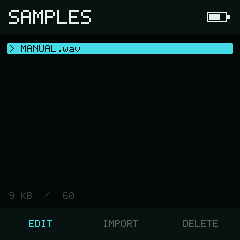
The title identifies the browser source; actions stay in the bottom bar.
Browser controls
| Input | Result |
|---|---|
| Up / Down | Select the previous or next entry. |
| or | Jump eight entries. |
| Left / Right | Select an action in the bottom bar. |
| Enter | Open a directory or run the selected action. |
| Play | Start preview of the selected WAV, or stop the active preview. Releasing Play does not stop it. |
| Import the selected library WAV immediately. | |
| Go to the parent library directory without leaving the browser. | |
| Leave the browser and return to its owner page. |
Stop normal playback before previewing a WAV. The footer shows the selected file's size and preview volume.
Project pool actions
For a project sample, the bottom bar offers:
- Load assigns the selected project sample to the current Sample instrument
and opens Instrument. The current instrument must have Type
SAMPLE. - Import switches to the
/sampleslibrary. - Delete removes an unused sample after confirmation.
is a delete shortcut when a project file is selected. A file marked * is referenced by at least one Sample instrument and cannot be deleted. Deletion is also blocked while transport or sample preview is active.
Library actions
Directories have an Open action and are shown with a / prefix. Files have:
- Import, which copies and converts the WAV into the current project.
- Back, which returns to the page that opened the browser.
To edit a WAV, load or import it into a Sample instrument, then choose Edit
on that instrument's SAMPLE row. Editing this project copy does not change
the original library file.
Import fails instead of overwriting an existing project sample with the same resolved name. If the current instrument is a Sample instrument, a successful import assigns the new project sample to it and clears its slices.
Use Load in the project pool to reuse a WAV that is already in the project. Loading a different sample clears the current instrument's slice points; loading the same sample again preserves them.
A ~ prefix marks a likely single-cycle WAV. Tap Play to loop its preview, then tap again to stop. Longer files stop at the end.
Supported WAV input
Use an uncompressed mono or stereo WAV. Common PCM and floating-point WAV files are supported.
The Device page's Resampler setting changes accepted rates and project conversion:
| Resampler | Accepted source rate | Project copy |
|---|---|---|
NONE | 7,350–44,100 Hz | 16-bit PCM at the source rate |
LINEAR | 7,350–264,600 Hz | 16-bit PCM at 44,100 Hz |
If a WAV is too large or uses an unsupported format, NullPerator rejects it and keeps the project unchanged. See Files and compatibility for the complete format list.