Sample Editor
On a Sample instrument's SAMPLE row, choose Edit in the bottom bar and
press Enter. Load or import a WAV first if none is assigned.
Stopping a recording opens this editor automatically.
The editor changes WAV audio. Operations stay in a working copy until you choose Save or Save As. Slices instead store playback boundaries in the instrument and do not rewrite the WAV.
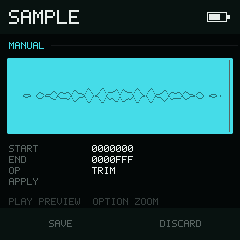
Select Operation to choose Trim or Normalize in the bottom bar.
Trim a sample
- Select
START. Hold Enter, use Left / Right to choose a digit, and Up / Down to change its value. - Release Enter, move to
END, and edit it the same way. - Move to Operation, choose Trim with Left, and press Enter. The operation starts immediately and shows progress.
- Tap Play to preview the result; tap again to stop early.
- Move to Save. Choose Save to replace the opened WAV, or Save As to name and load a new copy.
Changing Start and End only selects a range. Run Trim to remove the audio outside that range before saving.
Editor controls
| Input | Result |
|---|---|
| Up / Down | Move through Start, End, Operation, and Save. The waveform is a display, not a focus row. |
| Hold Enter on Start or End | Show Digit and Value controls: horizontal directions choose a digit; vertical directions change its value. |
| Left / Right on Operation or Save | Choose the left or right bottom-bar action. |
| Enter on Operation or Save | Run the selected action. |
| or | Zoom in or out around the selected marker. |
| Play | Start preview from Start, or stop the active preview. |
| Go back; unsaved work requires confirmation. |
Start and End are seven-digit hexadecimal frame positions. Start cannot move past End, and End cannot move before Start or beyond the last frame.
Short single-cycle files loop during preview until you tap Play again. Longer files play from Start toward the end of the WAV. The waveform shows a moving play cursor while it is within the displayed range.
Trim and Normalize
The Operation row shows Trim on the left and Normalize on the right:
- Trim keeps the inclusive Start–End range.
- Normalize scans the complete working WAV and scales its peak to full range. It supports PCM 8-bit and PCM 16-bit WAV data.
Neither operation asks for confirmation. Both show progress with a Cancel action that returns to the last valid working copy. You can apply several operations before saving; the waveform updates after each successful operation.
Save and Save As
The Save row shows Save on the left and Save As on the right.
| Action | Result |
|---|---|
| Save on a project sample | Replaces that project's WAV. The app displays Reload project to apply: reload before instruments already using it play the rewritten audio. |
| Save As | Asks for a new name, writes a WAV in /samples, imports it into the current project, and assigns it to the current Sample instrument. The original file stays unchanged. |
| Save on a fresh recording | Asks for a name and saves, imports, and assigns it like Save As. |
New names can contain up to 20 characters. The app adds .wav and checks both
the library and current project's sample names, ignoring letter case. If a name
is already used, the name screen stays open so you can change it. Assigning a
new copy clears the current instrument's slice points.
If the app reports Sample saved; load failed, the library WAV was saved. Open Load from the Sample instrument to find it and retry the import.
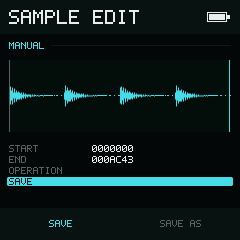
Save replaces the opened WAV; Save As names and loads a separate copy.
Leave without saving
Hold Shift to show Back, then press Left. After a range change, an applied operation, or a new recording, a dialog says Unsaved edits will be lost. Choose No on the left to keep editing, or Yes on the right to discard the unsaved work and leave. Previously saved audio is unaffected.