Create, load, save, and delete
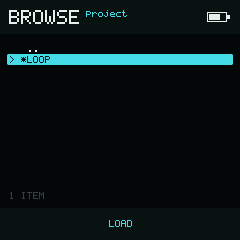
The Project Browser lists directories and keeps its actions in the bottom bar.
Select NAME below the Project divider on the Project page. The bottom bar offers NEW, LOAD,
SAVE, and RENAME. Move between them with Left and Right and press Enter
to run the selected action.
Create a project
Choose NEW. If the current project has unsaved changes, NullPerator asks before replacing it. Stop playback first if New is unavailable.
Choose SAVE, enter a name, and choose SAVE on the keyboard page. The new project is then saved under that name.
Save and Save As
SAVE updates the current named project. The saving symbol appears in the top-right status area before storage I/O begins and remains visible briefly after the write completes.
Manual saves write /projects/<name>/npsong.dat. After a successful save,
NullPerator clears that project's recovery autosave. An existing lgptsav.dat
is kept unchanged for compatibility; it is not the file updated by SAVE.
Use RENAME when you want to save the project under a different name:
- Enter a new project name.
- Choose SAVE on the keyboard page.
- Return to the Project page and save the project.
If that name already exists, NullPerator asks before replacing it.
An empty name cannot be saved. Rename also offers CANCEL and RANDOM.
Load with the Project Browser
Choose LOAD to open the Project Browser. It starts in /projects and lists
project directories rather than individual save files.
- Up and Down move through the list.
- or moves by eight rows.
- Left and Right choose a bottom-bar action.
- Enter runs the selected action.
- The current project has a leading
*.
The first row is ..; choose it to move to the parent folder. A folder opens
when you press Enter. Inside the Projects folder, LOAD opens the selected
project.
Loading is blocked while playback is running. If the current project is dirty, NullPerator asks before replacing it. If a project cannot be opened, an error appears and your current song stays open. After a successful load, Song opens.
Loading first tries a valid autosave.dat, then the manual npsong.dat. If the
new file is absent, NullPerator can load the older lgptsav.dat instead. You do
not need to rename an old project's file before opening it. See
Autosave for recovery behavior.
Delete a project
Select a project other than the active one, choose DELETE, and press Enter. Deletion requires confirmation and is blocked while playback is running.
The active project has no Delete action. If deletion fails, the project remains in the list and an error appears.
Remove unused content
The Cleanup section contains two destructive, confirmed operations:
- On
SAMPLES, choose BROWSE to inspect the project sample pool or REMOVE UNUSED to delete unreferenced project samples. - On
INSTRUMENTS, press Enter on REMOVE UNUSED to release unreferenced instrument slots.
Stop playback before cleanup. Save first if you may want to restore the removed items later.
If an operation is interrupted
Restart NullPerator and try the action again. If a save was interrupted, check the current project before continuing. Do not remove hidden files from a project folder while NullPerator is running.
Deleting a project has no undo. Make an external backup first if you may need it again.