Autosave, export, and backup
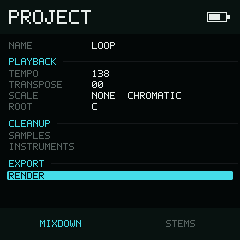
Render offers Mixdown and Stems from the Project page.
Autosave
Autosave writes autosave.dat inside the current project folder. It does not
overwrite the manually saved npsong.dat or an older lgptsav.dat.
NullPerator checks for unsaved changes about once a minute. It waits until it is safe to write—for example, until playback, recording, rendering, and file browsing have stopped.
The saving mark replaces the battery in the top-right corner while a save is in progress. Before closing the app, powering off, or removing storage, stop playback, use manual SAVE, and wait for that mark to disappear.
If an autosave seems overdue, leave any browser, editor, or dialog and return to a normal music page. Stop playback and wait a moment.
When you reopen a project, NullPerator tries a valid autosave.dat before the
manual save. Recent edits can therefore return even though the main file has
not changed. Without a usable autosave, it loads npsong.dat, or the legacy
lgptsav.dat when the new file is absent.
A successful manual SAVE writes npsong.dat and clears the recovery
autosave. Saving an older project leaves its lgptsav.dat unchanged.
Autosave replaces the previous autosave; it is not version history and does not replace an explicit save. Unsaved-change confirmations can still appear after an autosave. Use manual SAVE before a risky change and keep an external backup for important songs. See Files and compatibility for the complete project layout.
Render a mixdown or stems
On the Project page, select RENDER, choose MIXDOWN or STEMS with
Left and Right, and press Enter.
Rendering starts from Song row 00 and stops at the end. Stop playback first,
and make sure row 00 contains at least one chain with a phrase.
While rendering, a progress dialog is shown:
- Enter cancels an active render.
- Enter acknowledges completion or an error.
- A file-open failure is reported as
COULD NOT OPEN FILE.
The result is a 44.1 kHz, 16-bit stereo WAV:
| Mode | Files in /renders |
|---|---|
| Mixdown | <project>-mixdown.wav |
| Stems | <project>-channel0.wav through <project>-channel7.wav |
Rendering the same project and mode again replaces those same filenames
without an overwrite confirmation. Copy a render out of /renders or rename
it before rendering another take you may want to keep.
Stem filenames use channel0 through channel7 for tracks T1 through T8.
Retrieve the files from the SD card in NullPerator hardware, the Web Files panel, or the NullPerator folder in iOS Files.
Backup checklist
Before a risky edit or storage migration:
- Stop playback and wait for any saving symbol to disappear.
- Use SAVE to make a clear checkpoint.
- NullPerator hardware: copy the complete
/projects/<name>directory from the SD card. - Web app: download a ZIP from the Files panel.
- iOS app: copy the complete project folder from the NullPerator folder in Files.
- Keep
/renders,/themes,/instruments, and the shared/sampleslibrary too if those assets matter to the project.
Web app storage belongs to the current browser profile and site. Download a ZIP before clearing site data, using a private profile, or moving to a different site address.