Sample instrument
A Sample instrument plays one WAV from the project's sample pool and applies pitch, level, pan, lo-fi processing, filtering, looping, and an optional instrument table.
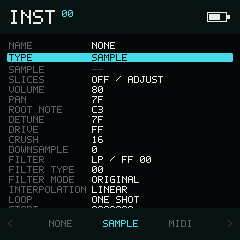
The parameter list scrolls while the title and bottom-bar context remain fixed.
Load a sound
- Set the instrument Type to
SAMPLEand move to theSAMPLErow. - Use Left / Right to choose Load, then press Enter to open the sample library.
- Select a WAV and tap Play to preview it; tap again to stop.
- Stop the preview if it is still playing, then choose Import on the file. NullPerator copies it into the project, assigns it, and returns to Instrument.
On Web and iOS, the SAMPLE row offers Load / Import / Record / Edit.
Import opens the system WAV picker, Record captures a new take, and
Edit opens the assigned WAV. Edit requires a loaded sample; stop playback
before loading, importing, recording, or editing.
See Browse and import samples and Record a sample for the complete workflows. Importing a different WAV clears this instrument's slice points.
Page sections
The list groups parameters under Source, Level & Pitch, Character, Filter, Playback, and Modulation. Move through fields with Up / Down; the section dividers are labels.
Common adjustments
- Make it louder or quieter: change
VOLUME. - Tune it: set
ROOT NOTEto the pitch the WAV was recorded at, then useDETUNEfor small corrections. - Place it in stereo: change
PAN;7Fis centered. - Play once: leave
LOOPonONE SHOT. - Sustain a sound: choose
FORWARDorPING PONG, then adjust the loop start and end. - Play a chopped beat: open
SLICESand add or automatically place slices.
Parameter reference
Values shown with A–F are hexadecimal unless the table says otherwise.
| Field | Values | Default | What it controls |
|---|---|---|---|
SAMPLE | Project WAV name | -- | Choose Load, Import, Record, or Edit in the bottom bar; available actions depend on the platform and loaded sample. |
SLICES | Slice count | Unsliced | Enter opens the Slices editor. |
VOLUME | 00–FF | 80 | Instrument output level after drive/crush. |
PAN | 00–FE | 7F | Stereo position; 7F is centered. |
ROOT NOTE | MIDI note 0–127 | C3 | Note that plays the sample at its base pitch. |
DETUNE | 00–FF | 7F | Fine pitch around the root; 7F is neutral and the full range is about ±1 semitone. |
DRIVE | 00–FF | FF | Gain into the crusher. |
CRUSH | 1–16 decimal | 16 | Bit-depth reduction; 16 is full resolution. |
DOWNSAMPLE | 0–8 decimal | 0 | Sample-and-hold reduction; each step increases the reduction factor. |
FILTER | LP / CC RR | LP / FF 00 | Displays cutoff (CC) and resonance (RR). Direct field editing changes cutoff. |
FILTER TYPE | 00–FF | 00 | Morphs the response from low-pass through band-pass toward high-pass. |
FILTER MODE | ORIGINAL, BASSY, SCREAM | ORIGINAL | Chooses the filter character. |
INTERPOLATION | LINEAR, NONE | LINEAR | Linear interpolation or nearest-neighbour playback. NONE is cheaper and rougher. |
LOOP | Five modes | ONE SHOT | Chooses the playback/loop strategy described below. |
START | 7 hex digits | 0000000 | First frame used for playback. |
LOOP START | 7 hex digits | 0000000 | Beginning of the loop window. |
LOOP END | 7 hex digits | End of sample | End of the playback/loop window. |
TABLE | --, 00–1F | -- | Table attached to every note from this instrument. Enter assigns the first free table. |
AUTOMATION | NO, YES | NO | With YES, an instrument trigger advances its table automation rather than advancing once per tick. |
START, LOOP START, and LOOP END are bounded by the loaded sample. Hold Enter, select one of the seven digits with Left / Right, and edit it with Up / Down.
Loop modes
| Mode | Behaviour |
|---|---|
ONE SHOT | Plays once from START to LOOP END. |
FORWARD | Starts at START, then repeats the LOOP START–LOOP END window. |
PING PONG | Alternates forward and backward through the loop window. |
OSCILLATOR | Treats the loop window as one oscillator cycle and tunes it from C3. |
LOOP SYNC | Fits the loop window to the tracker's tempo-synchronised cycle; notes transpose that result from the root note. |
Reversing the order of the start/end points reverses playback where the selected loop mode supports it.
Slices and notes
A Sample instrument can store up to 16 slice starts. Once slices are present, the displayed note range C4–D#5 (stored notes 48–63) addresses slice slots 1–16. Each slice plays once from its start to the next later slice (or the end of the WAV), independent of the instrument's loop mode. Older builds labelled these same slice notes C2–D#3; existing sequences need no note changes.
Slice points belong to the instrument, not to the WAV. Importing a different sample into the current instrument clears them. See Sampling → Slices for editing controls.
If playback crackles on NullPerator hardware
Start with ONE SHOT, set the filter and lo-fi processing to their neutral
values, and try INTERPOLATION NONE. Add processing back one setting at a time
until you find the combination that plays cleanly.