Choose an instrument
An instrument is the sound used by a Phrase note. Each Phrase row chooses an
instrument number such as I00; opening that number lets you choose and shape
the sound.
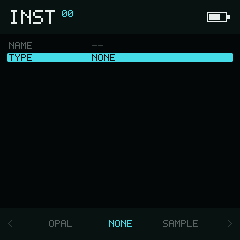
An empty instrument begins as NONE. Choose a Type to create its sound.
Try the built-in OPAL synth
- In Phrase, place the cursor on a row that uses
I00. - Use to open Instrument 00.
- Move Down once to Type.
- Use Left / Right until the Type reads
OPAL. - Use to return to Phrase.
- Hold Enter on the note to hear it.
OPAL, SID, Drum, Stack, Chiptune, and the GB instruments make sound without loading a file. A Sample instrument needs a WAV, and MIDI plays an external instrument.
Assign an instrument in Phrase
On an empty INS cell, press Enter to insert the remembered
instrument immediately. Creating a NOTE also fills its INS assignment. Keep
Enter held on NOTE or INS to audition the step; release it to
stop the preview.
Use or on INS to choose another instrument number. These change which instrument the row uses, not the sound's settings.
A second consecutive Enter on INS assigns a new empty instrument
slot, even if INS already has a number. The new slot starts as NONE; open it
and choose a Type. This does not duplicate the previous sound. To make a copy,
use Clone referenced data.
While holding Enter, press Option to cut the current assignment, including one you just entered. Cutting INS alone leaves the note in place; cutting NOTE clears both NOTE and INS.
Instrument types
| Type | Use it for |
|---|---|
SAMPLE | Play, loop, process, and slice a WAV |
MIDI | Play an external synth or software instrument |
SID | Make chip-style basses, leads, and noise |
OPAL | Make FM bells, basses, and additive tones |
DRUM | Build a twelve-sound synthesized drum kit |
STACK | Make layered leads, detuned sounds, and chords from one note |
CHIPTUNE | Make pulse leads, fast arpeggios, and chip-style noise |
GB-WAVE | Edit a 32-point, 4-bit waveform for GB-style basses and leads |
GB-PULSE | Use GB-style pulse duty, envelope, length, and sweep |
GB-NOISE | Use a 7- or 15-bit noise generator for percussion and effects |
NONE | Leave the instrument empty |
All 64 slots (00–3F) accept any available type. There is no separate
two-Chiptune or three-OPAL preset quota: you can give several Chiptune or GB
slots different sounds. Memory is allocated as needed. Preset count is not
the same as simultaneous voice count; see Capacities and platforms.
Page sections
Blue dividers group each instrument's parameters. They are section labels in one scrolling list; use Up / Down to move between editable rows.
| Instrument | Sections |
|---|---|
| Sample | Source; Level & Pitch; Character; Filter; Playback; Modulation |
| MIDI | Output; Modulation |
| SID | Oscillator; Envelope; Filter & Output |
| OPAL | General Settings; Operator Settings |
| Drum | Voices; Kit |
| Stack | Oscillator; Tone; Envelope; Modulation |
| Chiptune | Oscillator; Envelope; Vibrato; Sweep; Modulation |
| GB-Pulse | Oscillator; Envelope & Sweep; Modulation |
| GB-Noise | Noise; Envelope; Modulation |
| GB-Wave | Oscillator; Wave RAM (4 Samples / Row); Modulation |
Drum's Voices divider shares the column-header row. SID's Envelope divider shares its ATK / DEC / SUS / REL headers, and OPAL's Operator Settings divider shares its OP 1 / OP 2 headers.
Moving around
| Input | Result |
|---|---|
| Up / Down | Move through Name, Type, and the parameter list. Long lists scroll with the cursor. |
| Left / Right | Change the selected action, type, selector, or value. Numeric fields use their fine step. |
| or | Make the selected numeric value's coarse adjustment. On a multi-digit value, edit the focused digit. |
| or | Make a fine adjustment, or move between digits/bits when the field exposes them. |
| or | Select the previous or next instrument slot. The list wraps between 00 and 3F. |
| or | Select track T1–T8 for phrase-context playback. |
| Return to Phrase. | |
| Open the selected instrument's Table context. | |
| Play | Control phrase-context playback for the selected track. |
Choice fields such as NO / YES, loop mode, waveform, and algorithm wrap around when changed. Ordinary numeric ranges clamp at their minimum and maximum.
Name actions
Move the cursor to Name, then use Left / Right to choose one of the three bottom-bar actions:
- Load opens the instrument browser. Choose an instrument file and press Enter to import it into the current slot. Stop playback first.
- Save exports the current instrument. Give it a name first; an empty
NONEinstrument cannot be saved. If the name exists, confirm whether to replace it. - Rename opens the on-screen keyboard for the current slot.
An exported Sample instrument stores its settings and sample filename; it does not bundle the WAV file. Copy the sample separately when moving the instrument to another device or project.
Changing type
Select Type and press Left / Right to change it.
Available types are NONE, SAMPLE, MIDI, SID, OPAL, DRUM, STACK,
CHIPTUNE, GB-WAVE, GB-PULSE, and GB-NOISE.
The selector wraps around, so keep moving until the type you want appears.
If the current instrument has a name or edited settings, NullPerator asks before replacing it. Stop playback and note preview before changing type.
Editing fields
Most parameters change directly with Left / Right; holding Enter adds the vertical coarse-edit gesture shown in the bottom bar. Compound values behave differently:
- On a hexadecimal digit field, hold Enter, move Left / Right to choose a digit, then press Up / Down to edit it.
- On a bit field, hold Enter, choose a bit with Left / Right, then press Up / Down to toggle it.
- On an OPAL operator row, Left / Right without Enter switches between operator 1 and operator 2. Hold Enter while editing the operator value.
- On a Sample or MIDI
TABLEfield, press Enter to assign the first free table. This replaces the field's current table number.
Instrument changes are saved with the project. Save on the Instrument page creates a separate instrument file that you can import elsewhere.
See Limits and compatibility for the number of instruments available for each type.