Drum
Drum gives one instrument twelve percussion sounds, numbered D01–D12. Choose a drum number in Phrase to play that sound. No WAV file is needed.
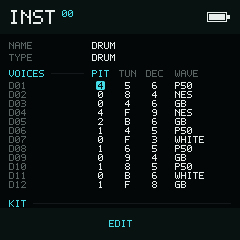
Each row shapes one drum. The highlighted cell is the parameter you are editing.
Try a beat
- Open an instrument and select Type. Use Left / Right to choose
DRUM. - Return to Phrase with and assign that instrument to your drum notes.
- Enter D01 on row
00, D07 on04, D03 on08, and D07 on0C. - Press Play to hear the pattern. Use separate tracks if two drum sounds need to overlap.
On a Drum NOTE cell, hold Enter and use Left / Right to choose the previous or next drum. Up / Down moves by ten drum numbers. The selection wraps between D01 and D12; the project scale does not skip drums. Change a drum's pitch with TUN, not an octave number.
Shape a drum
The blue Voices divider shares the PIT / TUN / DEC / WAVE column-header row. The Kit section below the twelve voices contains Character.
Use Up / Down to move between drum rows. Use Left / Right to select a parameter column. Moving to another drum row keeps the same column selected.
| Column | What it changes |
|---|---|
| PIT | How quickly the pitch envelope decays |
| TUN | The drum's base tuning; higher values raise the pitch |
| DEC | The volume envelope's decay |
| WAVE | The pulse, triangle, or noise source |
For PIT, TUN, and DEC, hold Enter and press
Left / Right for a small change, or
Up / Down for a large change.
These values use hexadecimal 0–F. The bottom bar shows ±1 / ±10 in the
same notation; a large change reaches the end of this one-digit range.
Only the selected parameter changes.
Choose a waveform
Select WAVE to see a description of the current waveform in the bottom bar. Hold Enter to show the scrolling selector, then use Left / Right to cycle through the waveforms. Up / Down also selects the next or previous waveform. Release Enter to return to the description. The selector wraps at both ends.
| Display | Waveform |
|---|---|
| P12.5 | 12.5% pulse |
| P25 | 25% pulse |
| P50 | 50% pulse |
| TRI | Triangle |
| GB | Game Boy-style noise |
| NES | NES-style noise |
| SN | SN76489-style noise |
| WHITE | White noise |
Add variation with Character
CHARACTER (00–FF, initially 00) adds random variation to trigger timing,
pitch, and level across the whole kit. Leave it at 00 for consistent hits;
raise it to explore less predictable rhythms. It does not name or select a drum.
Starting kit
These descriptions identify the starting sounds, not fixed names. Editing a row can turn it into a different sound.
| Drum | Starting sound |
|---|---|
| D01 | Bass drum |
| D02 | Rim shot |
| D03 | Snare 1 |
| D04 | Clap |
| D05 | Snare 2 |
| D06 | Low tom |
| D07 | Closed hi-hat |
| D08 | Mid tom |
| D09 | Pedal hi-hat |
| D10 | High tom |
| D11 | Open hi-hat |
| D12 | Crash |
Playback tips
A new hit replaces the previous drum voice on the same track. Spread hits over multiple tracks for overlapping cymbals, kicks, and snares. Note Off stops the drum rather than starting a release tail.
The live-note bar also shows D01–D12 for Drum tracks. Song's main grid still shows Chain numbers. Existing projects keep their drum sounds: older C notes display as D01, C# as D02, and so on, regardless of their octave.
Drum handles VOL for level and the low digit of CSH for bit crushing,
as well as KIL for a timed stop. The drive part of CSH is not used.
Not every Sample instrument effect applies to Drum.
See Choose an instrument for naming, importing, and exporting sounds.
Credits
The Drum instrument is adapted from copingTracker by n1LS. Thanks to n1LS for the original instrument.