Navigation
NullPerator's main views form a map. Directions move the cursor inside the current view; hold Shift and tap a direction to move to a connected view. You do not need to open a menu first.
Shortcuts
Move
Return
Open and read the map
- From a mapped main view, hold Shift. The top-right status area becomes the navigation map.
- Find the cyan highlight. It marks the view that is open now.
- Keep holding Shift and tap a direction. The next view opens and the highlight slides to its new position.
- Release Shift when you have reached the view you want. The normal battery or playback status returns.
If the saving mark is active, it remains visible until the save finishes. Hold Shift again after it disappears.
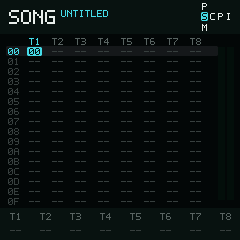
Song is current, so S is cyan. Project appears above it and Mixer below it.
Whenever the map is visible, its center row is S C P I. It is the main path
from Song to Chain, Phrase, and Instrument. The map adds only
the vertical branch for the current column:
- the Song column contains Project, Song, and Mixer;
- the Phrase column contains Groove, Phrase, and Phrase Table;
- the Instrument column contains Instrument and Instrument Table;
- Chain has no vertical branch.
Device sits one step above Project in the expanded navigation map. It is shown
in the expanded guide even though the compact top-bar map does not draw D.
The repeated letters are identified by position. The P above Song is
Project; the P between Chain and Instrument is Phrase. The two T entries
are Phrase Table and Instrument Table.
Try it: Song to Phrase
Use the structure made in Quick start, or choose a filled Chain cell in Song whose current Chain row also contains a Phrase.
- On Song, move the cursor onto the filled Chain cell.
- Hold Shift.
Sis highlighted in the map. - Tap Right without releasing Shift. The selected Chain
opens and
Cbecomes highlighted. - Tap Right again. The Phrase on the current Chain row opens,
and the highlight moves to the second
P. - Release Shift.
You should now be in the Phrase referenced by that Chain row. If Song or Chain does not move right, its Chain or Phrase reference is empty.
Context follows the cursor
Moving right goes deeper into the music structure. Song opens the Chain under
the cursor, and Chain opens the Phrase on its current row. Phrase opens the
Instrument on its current row; if that row shows I--, it opens the most
recently used Instrument instead. Moving left returns toward Song without
losing that context.
Within Chain, Phrase, Table, and Instrument, Option plus a direction changes the current track or nearby resource without leaving the page. The exact increment is listed on each view's page. Option does not open the navigation map.
Return from temporary views
Browsers, Sample Editor, and Sample Slices are not part of the main map. Return to the view that opened them with . A Table returns to its owner with . Modal dialogs must be confirmed or cancelled before navigation continues.